
Osim Suza: Your Simple Guide to SUZA’s Online Student Information System
Introduction
Osim Suza is the official Online Student Information Management (OSIM) system used by the State University of Zanzibar (SUZA). It’s the main platform for student admissions, applications, and academic account management.
If you’re a new applicant, continuing student, academic staff member, or alumni, Osim Suza is where your journey with SUZA officially begins. This guide will walk you through how to get started, create an account, log in, and complete key tasks without confusion or stress.
By the end of this post, you’ll know exactly how to use Osim Suza confidently and correctly.
What Is Osim Suza and Why It Matters
Osim Suza is a centralized online system designed to manage admissions and academic records at SUZA. Instead of handling applications manually, everything is done online in one place.
With Osim Suza, you can:
-
Apply for admission
-
Register as a new student or staff member
-
Log in to manage your application
-
Reset your password if you forget it
-
Track your application progress
It saves time, reduces paperwork, and keeps your information organized.
How to Begin With Osim Suza
Getting started is straightforward. Before you open the system, make sure you have:
-
An active email address
-
A working phone number
-
Your academic or registration details (if applicable)
Once ready, you can begin your journey through Osim Suza.
Step-by-Step Instructions to Use Osim Suza
Step 1: Visit the Official Osim Suza Website
Go to the official Osim Suza portal by visiting
https://osim.suza.ac.tz/
This is the only official site for SUZA’s OSIM services.
Step 2: Read the Admission Criteria Carefully
Before creating an account, review the admission requirements. These include:
-
Minimum grades
-
Diploma GPA requirements
-
Program-specific qualifications
Understanding this step helps you avoid applying for programs you may not qualify for.
Step 3: Create Your Osim Suza Account
If you don’t already have an account, select the appropriate sign-up option:
-
New applicant
-
Inter-university transfer student
-
Student without an OSIM account
-
Academic staff
-
Alumni
You’ll be asked to provide:
-
Registration number (if applicable)
-
Active email address
-
Phone number
-
A strong login password
Once completed, submit the form to create your Osim Suza account.

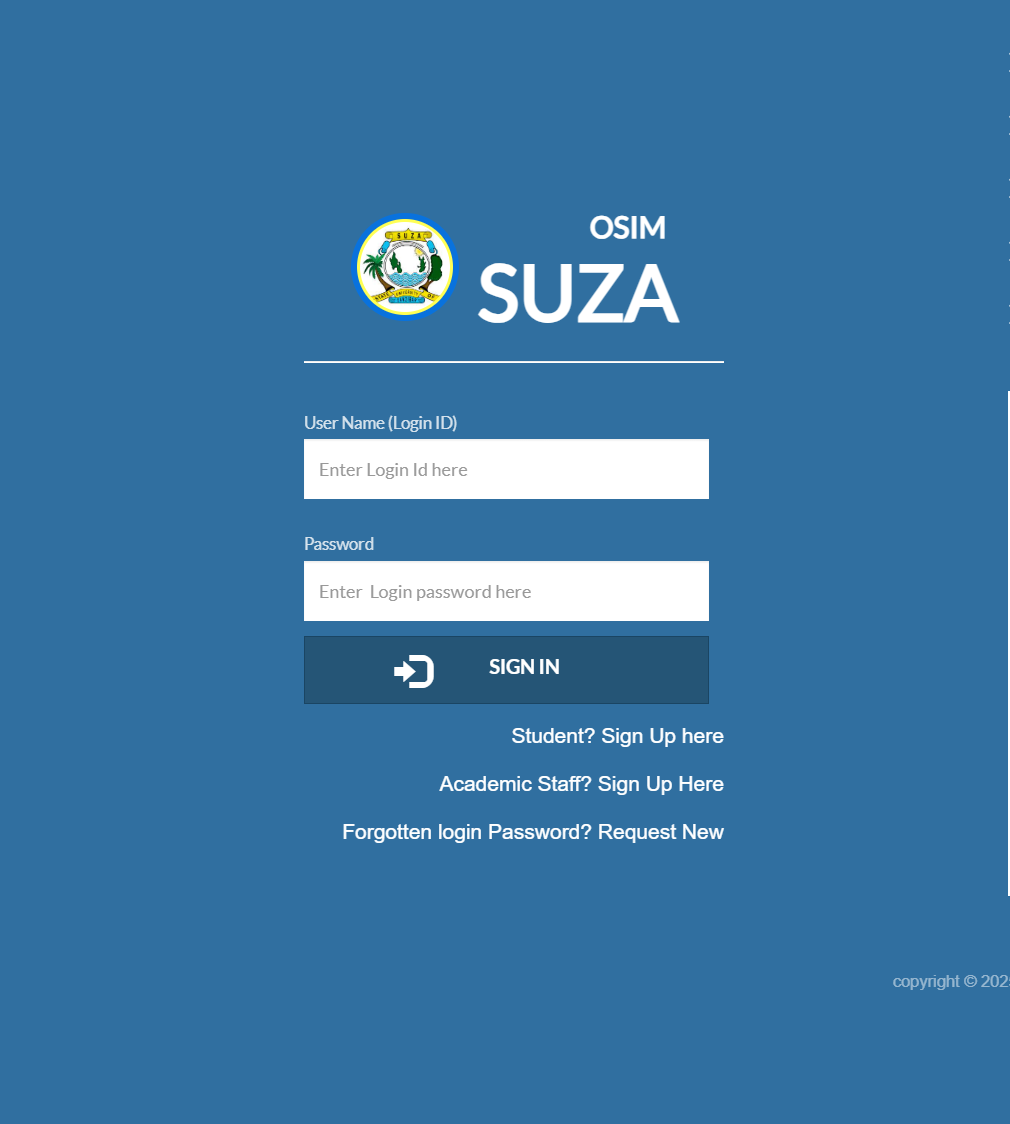
Step 4: Log In to Osim Suza
After registration:
-
Enter your User Name (Login ID) or email
-
Enter the password you created
-
Click Sign In
This takes you into your personal Osim Suza dashboard.
Step 5: Complete Internal Application Steps
After logging in, follow the internal instructions to:
-
Fill in personal and academic details
-
Upload required documents
-
Review your application
-
Submit your application for processing
Make sure every section is completed accurately before submission.
Available Services on Osim Suza
Osim Suza offers several useful services in one platform:
Student Admissions
Apply for undergraduate or postgraduate programs directly through the system.
Account Registration
Create accounts for students, academic staff, and alumni.
Inter-University Transfers
Special application pathway for students transferring from other universities.
Application Tracking
Log in anytime to check your application status.
What You Can Do Inside Your Osim Suza Account
Once logged in, you can:
-
Update personal information
-
Continue incomplete applications
-
Review submitted forms
-
Follow application instructions
-
Access official announcements related to admissions
Everything is organized to guide you step by step.
Resetting Your Osim Suza Password
Forgot your login password? No problem.
On the login page:
-
Click “Forgotten login Password? Request New”
-
Enter your registered email address
-
Follow the instructions sent to your email to reset your password
Always use an active email to avoid delays.
Tips & Quick Answers for Osim Suza Users
-
Use a strong password that is not too short
-
Double-check your email address before submitting forms
-
Read all instructions carefully after logging in
-
Avoid creating multiple accounts with different emails
-
Always use the official Osim Suza website
If you face technical issues, the system provides help and support contact details directly on the portal.
Extra Notes About Osim Suza
Osim Suza is continuously updated to improve performance and security. The current version ensures smoother registration and application processing for all users. Keeping your login details safe is important, as your academic records are tied to your account.
Conclusion
Osim Suza makes applying to and managing your relationship with SUZA easier, faster, and more organized. Whether you’re a new applicant, a transfer student, academic staff, or an alumnus, the system gives you clear steps and reliable access to essential services.
By following this guide, you can use Osim Suza with confidence and focus on what really matters—your academic journey.
Go to our Homepage To Get Relevant Information.
Contents
- 1 Osim Suza: Your Simple Guide to SUZA’s Online Student Information System
- 2 What Is Osim Suza and Why It Matters
- 3 How to Begin With Osim Suza
- 4 Step-by-Step Instructions to Use Osim Suza
- 5 Available Services on Osim Suza
- 6 What You Can Do Inside Your Osim Suza Account
- 7 Resetting Your Osim Suza Password
- 8 Tips & Quick Answers for Osim Suza Users
- 9 Extra Notes About Osim Suza
- 10 Conclusion