
Nit Sims: A Friendly Guide to Getting Started with the NIT Student Information Management System
Introduction
If you’re a student or staff member at the National Institute of Transport, Nit Sims is the system you’ll use to manage key academic and administrative tasks. It brings everything into one place—course registration, results, payments, progress tracking, and more. This guide walks you through the essentials so you can log in confidently, handle your tasks smoothly, and get the most out of what Nit Sims offers.
How to Begin with Nit Sims
Nit Sims is designed to help students and teaching staff work efficiently. Before you can register, check results, or manage payments, you’ll need to sign in through the official portal.
Step 1: Access the Login Page
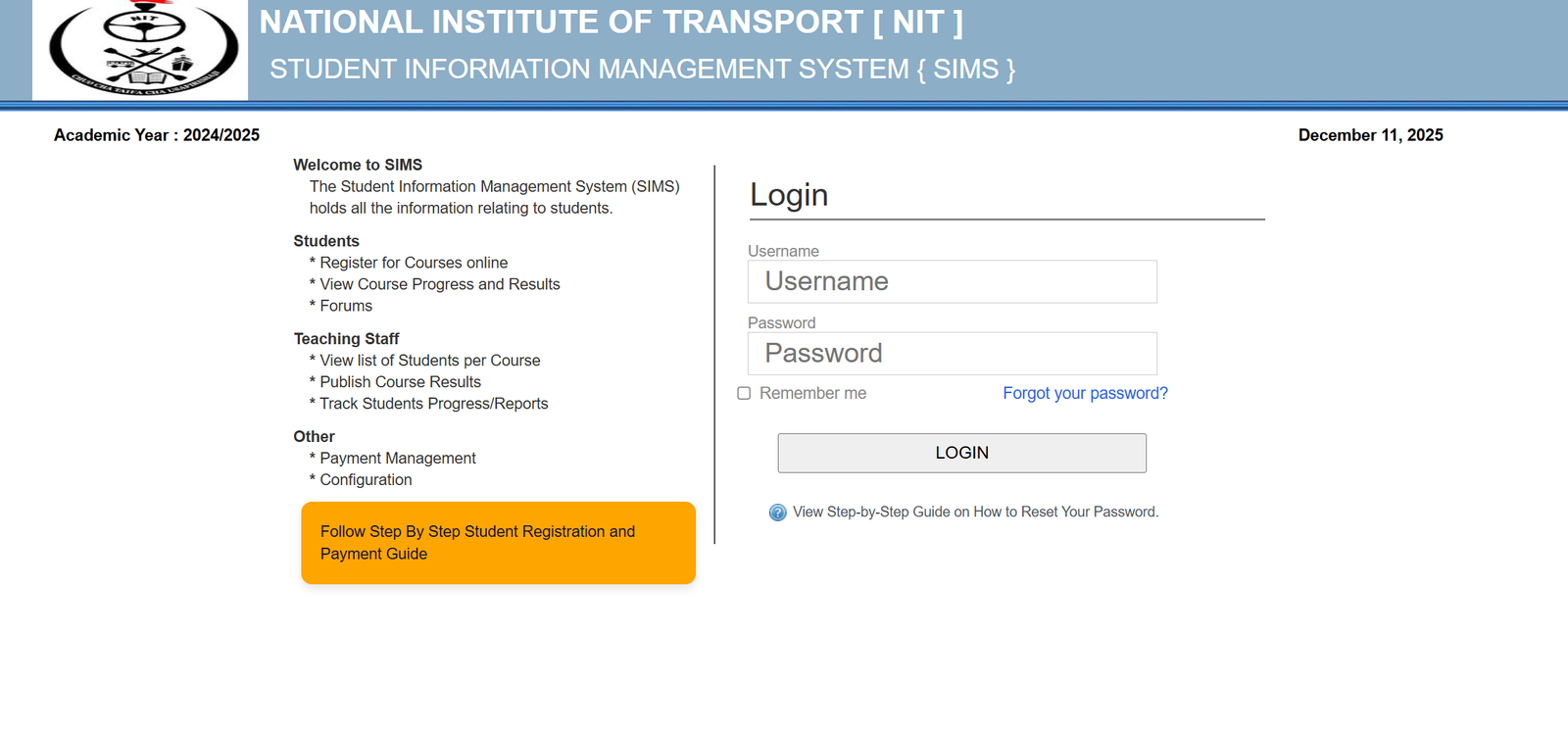
Visit the official Nit Sims login page:
https://sims.nit.ac.tz/index.php/login/?callback=https://sims.nit.ac.tz/index.php
Once you arrive, you’ll see options to enter your username and password.
Step 2: Enter Your Credentials
Type your username and password in the fields provided. If you’re on a private device, you can select “Remember me” to make future logins easier.
Step 3: Continue to Your Dashboard
Click “Login” to access your Nit Sims dashboard, where all your services and tools are listed clearly.
Nit Sims Step-by-Step Instructions
Student Registration
Nit Sims allows students to complete course registration online without queues or paperwork.
Step 1: Log into your account.
Step 2: Choose the Register for Courses option.
Step 3: Select your courses for the semester and confirm your choices.
Step 4: Follow any on-screen prompts if payment or approval is required.
Payment Management
Payments for various academic services can be handled inside Nit Sims.
Step 1: Open the Payment Management section.
Step 2: Review your required fees.
Step 3: Follow the instructions to complete your payment.
Step 4: Save or download your receipt for reference.
Checking Your Status or Results
You can monitor your academic progress anytime.
Step 1: After logging in, select View Course Progress and Results.
Step 2: Review your grades, course status, or instructor feedback.
Available Services Inside Nit Sims
For Students
-
Register for courses online
-
Access forums and academic notices
-
View course progress and results
-
Manage payments and receipts
For Teaching Staff
-
Access student lists per course
-
Publish course results
-
Track student progress and generate reports
Other Key Tools
-
Configuration options for your account
-
System updates and general information
What You Can Do After Logging Into Nit Sims
Enroll and Plan Your Semester
Select your courses, review requirements, and follow approval steps early to avoid last-minute issues.
Stay Updated on Results
Your results are published directly on Nit Sims, making it easy to track your performance throughout the academic year.
Participate in Forums
Some courses may include forums for discussions, notices, or clarifications.
Nit Sims: Resetting Your Password
If you forget your password, Nit Sims provides a simple reset process.
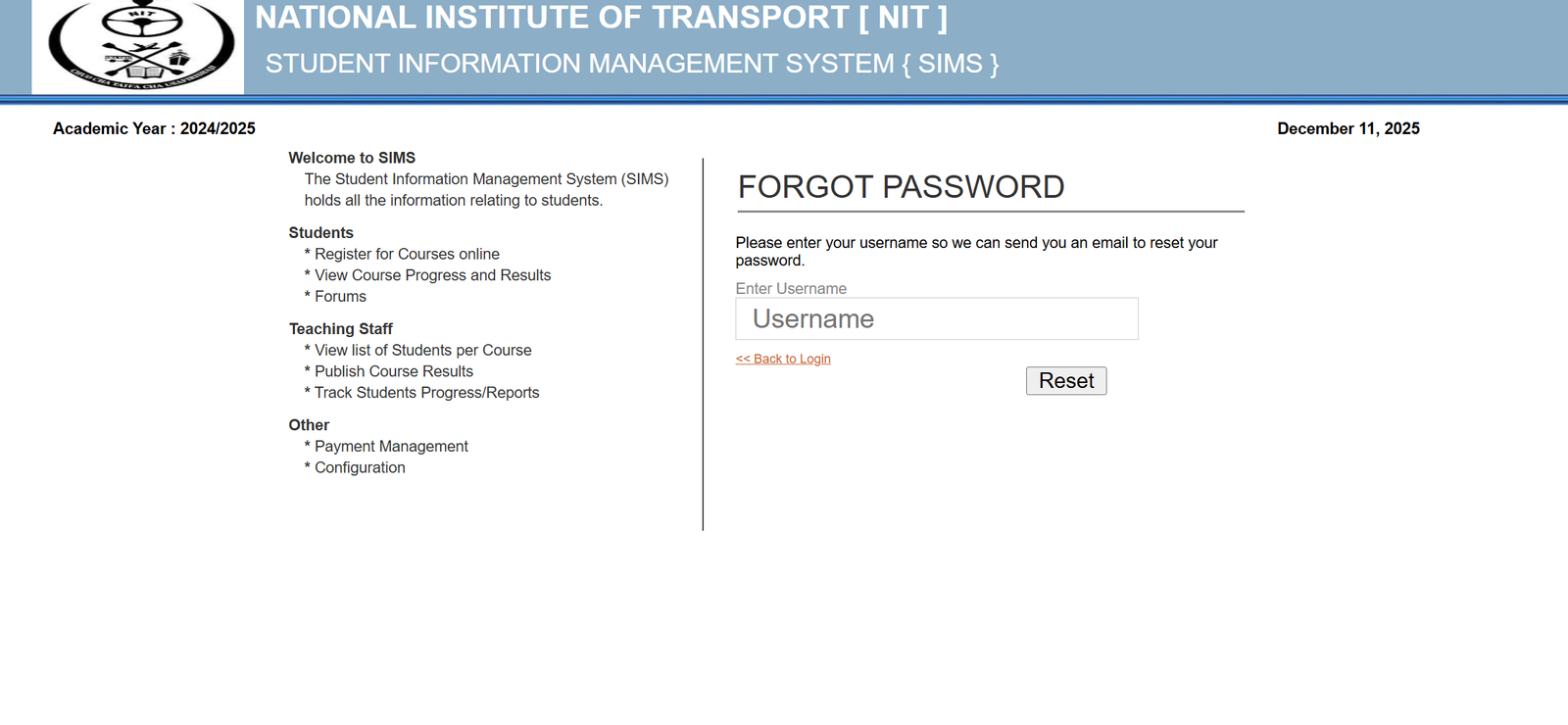
Step 1: On the login page, click Forgot your password?
Step 2: You’ll be taken to the reset page.
Step 3: Enter your username in the field provided.
Step 4: Submit the form to receive a reset email.
Step 5: Follow the link in your email to create a new password.
If you need extra help, the portal includes a View Step-by-Step Guide link on the password reset page.
Extra Notes About Nit Sims
-
It stands for Student Information Management System.
-
It is used by both students and academic staff.
-
All core academic and administrative tasks—from registration to results—flow through this system.
-
The interface is designed for clarity, so even first-time users can navigate it easily.
Conclusion
Nit Sims brings convenience, structure, and transparency to student and staff activities at NIT. Whether you’re registering for courses, checking your progress, making payments, or resetting your password, the system keeps everything organized and easy to manage. With the steps above, you should feel ready to log in and make full use of the tools available to you.
Go to our Homepage To Get Relevant Information.
Contents
- 1 Nit Sims: A Friendly Guide to Getting Started with the NIT Student Information Management System