
Juco Sims: A Friendly Guide to Getting Started and Making the Most of Your Student Portal
Introduction
If you’re a student or staff member at Jordan University College, chances are you’ll use Juco Sims, the Student Information Management System designed to keep your academic life organized. It stores everything from course registration to results, payments, and communication tools. This guide walks you through what Juco Sims offers, how to begin, and how to use its core features with confidence.
Getting Started With Juco Sims
Before you access anything, you’ll need to log in to your account. Juco Sims is built to give students and teaching staff a simple, centralized space to manage day-to-day academic tasks. Whether you want to register for courses, check your results, or publish reports, the portal is your starting point.
How to Begin
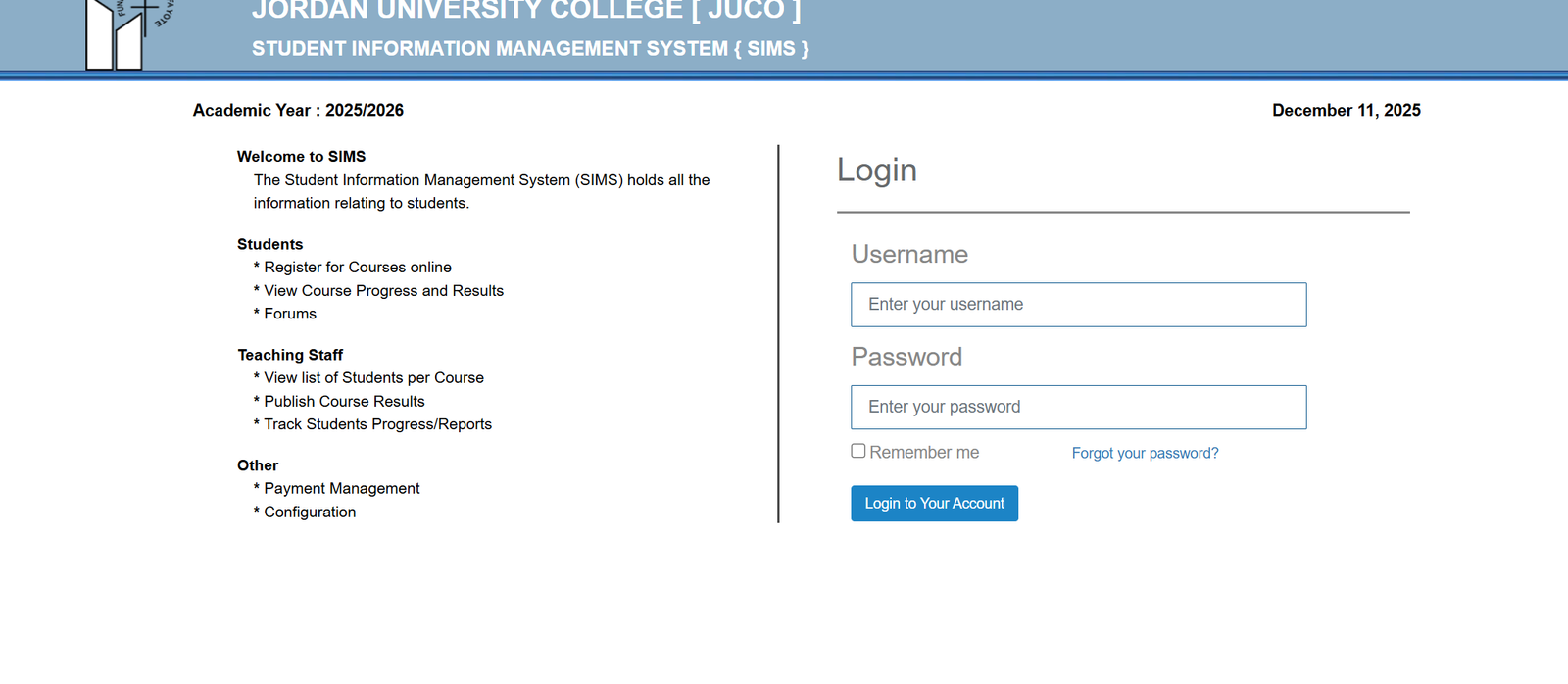
Step 1: Open the Official Juco Sims Login Page
Head to the official portal to get started:
Visit: https://sims.juco.ac.tz/login/?callback=https://sims.juco.ac.tz/
Step 2: Enter Your Username
Type in the username provided by the institution.
Step 3: Enter Your Password
Fill in your password and choose “Remember me” if you’re on a personal device.
Step 4: Click “Login”
Once logged in, you’ll see your main dashboard with options based on your role student, teaching staff, or admin.
Step-by-Step Instructions for Common Tasks in Juco Sims
Registering for Courses
-
Log in to Juco Sims.
-
Navigate to the Courses or Registration section.
-
Select your required course units for the semester.
-
Confirm and submit your registration.
Checking Course Progress and Results
-
From your dashboard, open Progress or Results.
-
Review grades, feedback, and performance history.
-
Download any available reports for personal recordkeeping.
Using Forums
Some courses include discussion forums. You can:
-
Ask questions
-
Engage with classmates
-
Respond to instructor posts
Available Services Inside Juco Sims
Student Features
-
Online Course Registration: Register quickly and avoid queues.
-
Progress & Results: Track ongoing performance and final results.
-
Forums: Participate in academic discussions and announcements.
Teaching Staff Features
-
Student Lists: View class rosters for each course.
-
Publish Results: Upload and release official course marks.
-
Track Student Progress: Access progress reports and histories.
Additional Tools
-
Payment Management: Helps monitor fee status and confirmations.
-
Configuration Settings: Adjust user-specific system preferences.
What You Can Do With Juco Sims
Juco Sims is more than a login page—it’s a full academic dashboard. You can access semester details, download forms, check deadlines, and follow your academic journey more clearly. Staff members can streamline teaching responsibilities, from grading to reporting.
Tips & Quick Answers About Juco Sims
Having Trouble Logging In?
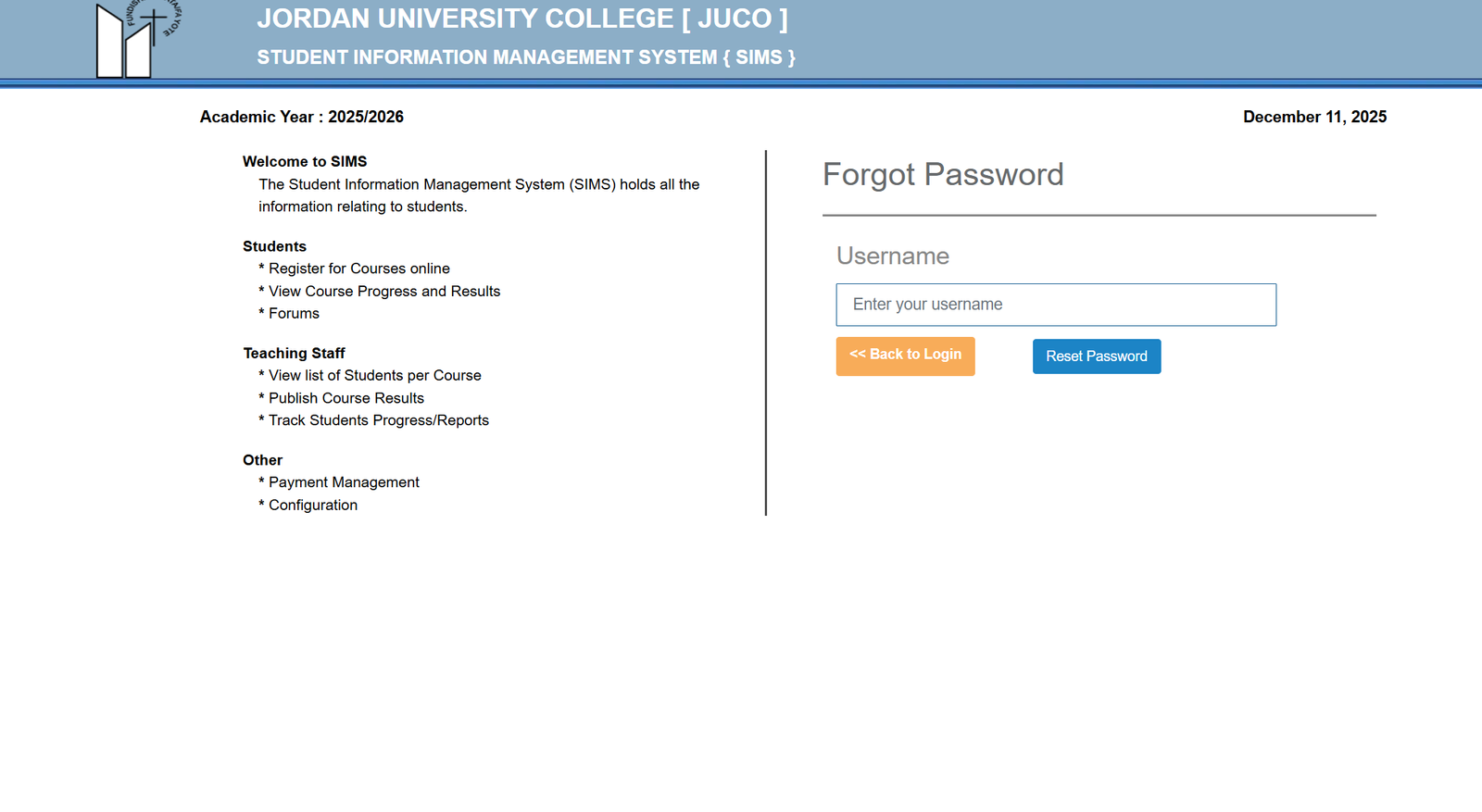
Double-check that you entered your username and password correctly. If the issue persists, use the Forgot Password option.
Want to Reset Your Juco Sims Password?
-
Go to the login page.
-
Select Forgot your password?
-
Enter your username.
-
Follow the instructions sent to your registered email.
Need to Check Your Payment Status?
Open Payment Management once logged in. You’ll be able to see confirmations, pending balances, and history.
Extra Notes
Juco Sims stands for Student Information Management System—a platform used to store and organize all academic-related data. It’s updated each academic year and offers separate access for students and staff. The system is maintained and developed by ICT Solutions Design for Jordan University College.
Conclusion
Juco Sims brings your academic responsibilities into one clean, straightforward platform. With the steps and features outlined here, you’ll be able to navigate your tasks more comfortably—whether you’re registering for courses, checking results, or managing student records. Keep this guide handy whenever you need a quick refresher.
Go to our Homepage To Get Relevant Information.
Contents
- 1 Juco Sims: A Friendly Guide to Getting Started and Making the Most of Your Student Portal