
mnma osim: A Simple, Friendly Guide to Getting Started on the Platform
If you’re new to mnma osim, you might be wondering how to create an account, log in, update your information, or complete your student registration without confusion. This guide walks you through everything in a clear, approachable way so you can get set up quickly and confidently.
Whether you’re a new applicant, a continuing student, an inter-university transfer, academic staff, or alumni, this overview will help you understand what the platform offers and how to use it without stress.
Introduction
mnma osim is the official online system used by MNMA to help students, staff, and applicants manage academic and administrative tasks digitally. If you’ve ever wished for an easier way to register, update your profile, check fee instructions, or simply log in without hurdles, this guide is for you.
By the end, you’ll know exactly how to:
-
Create your account
-
Log in safely
-
Follow registration steps
-
Understand system features and services
-
Recover your password when needed
Let’s begin with the basics.
How to Begin with mnma osim
Getting started is straightforward. Before anything else, you’ll need a valid Institute Registration Number, an active email address, and a working phone number. These details help the system verify your identity and open access to your digital records.
To reach the official login page, simply visit the platform at:
https://mnma.osim.cloud/
Step-by-Step Instructions for Using mnma osim
Step 1: Create Your Account
Visit the official platform link above and choose the appropriate signup option:
-
New student
-
Inter-university transfer student
-
Academic staff
-
Alumni
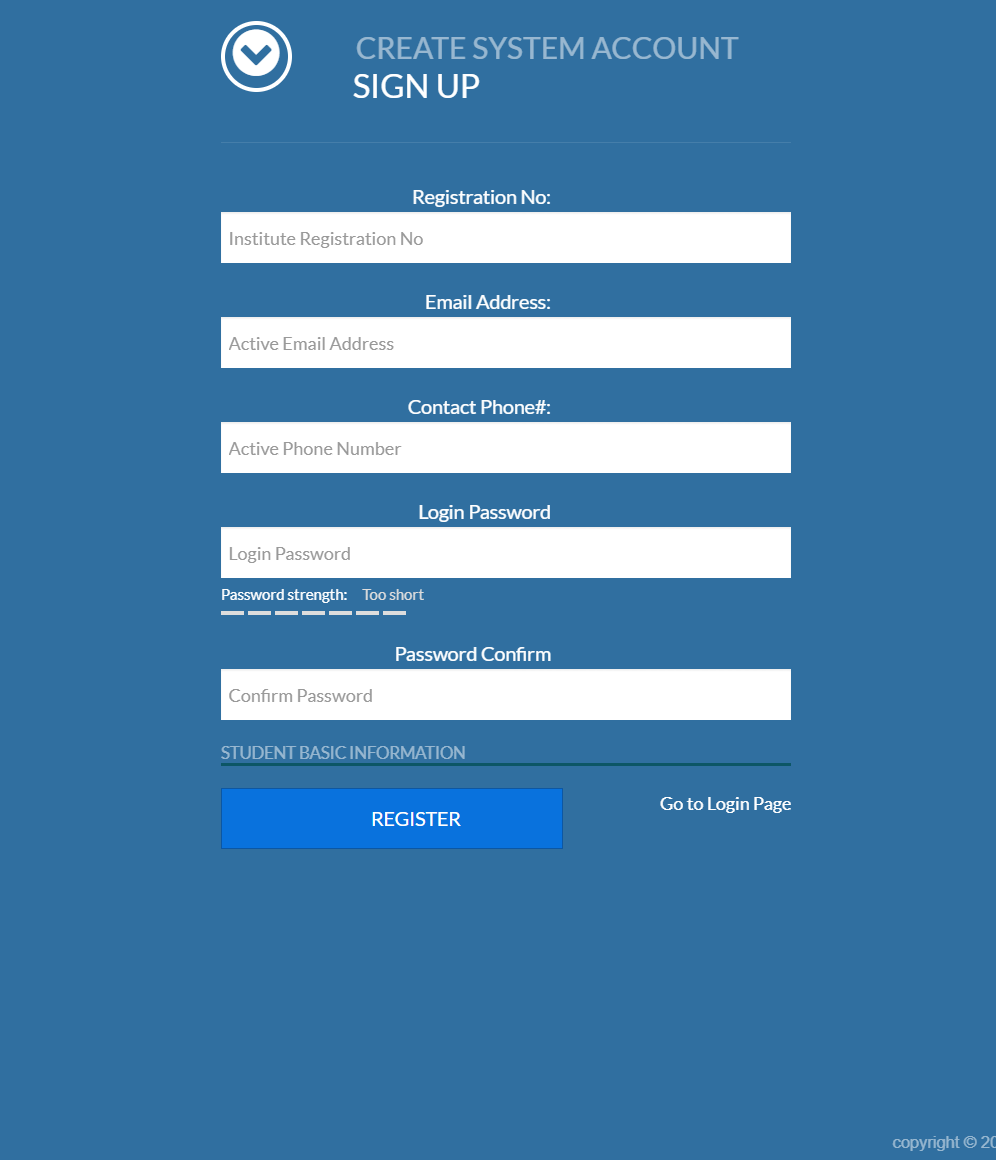
When prompted, enter your Institute Registration Number.
If you’re a new applicant and haven’t received one yet, use the “Get Your Reg Number” link on the page.
Next, provide your email address, phone number, and create a strong password.
Step 2: Add Your Personal Background Information
After creating your account, the system will guide you to input key background details.
Take a moment to confirm each entry before moving forward—accuracy helps avoid delays later.
Step 3: Log In to Your mnma osim Account
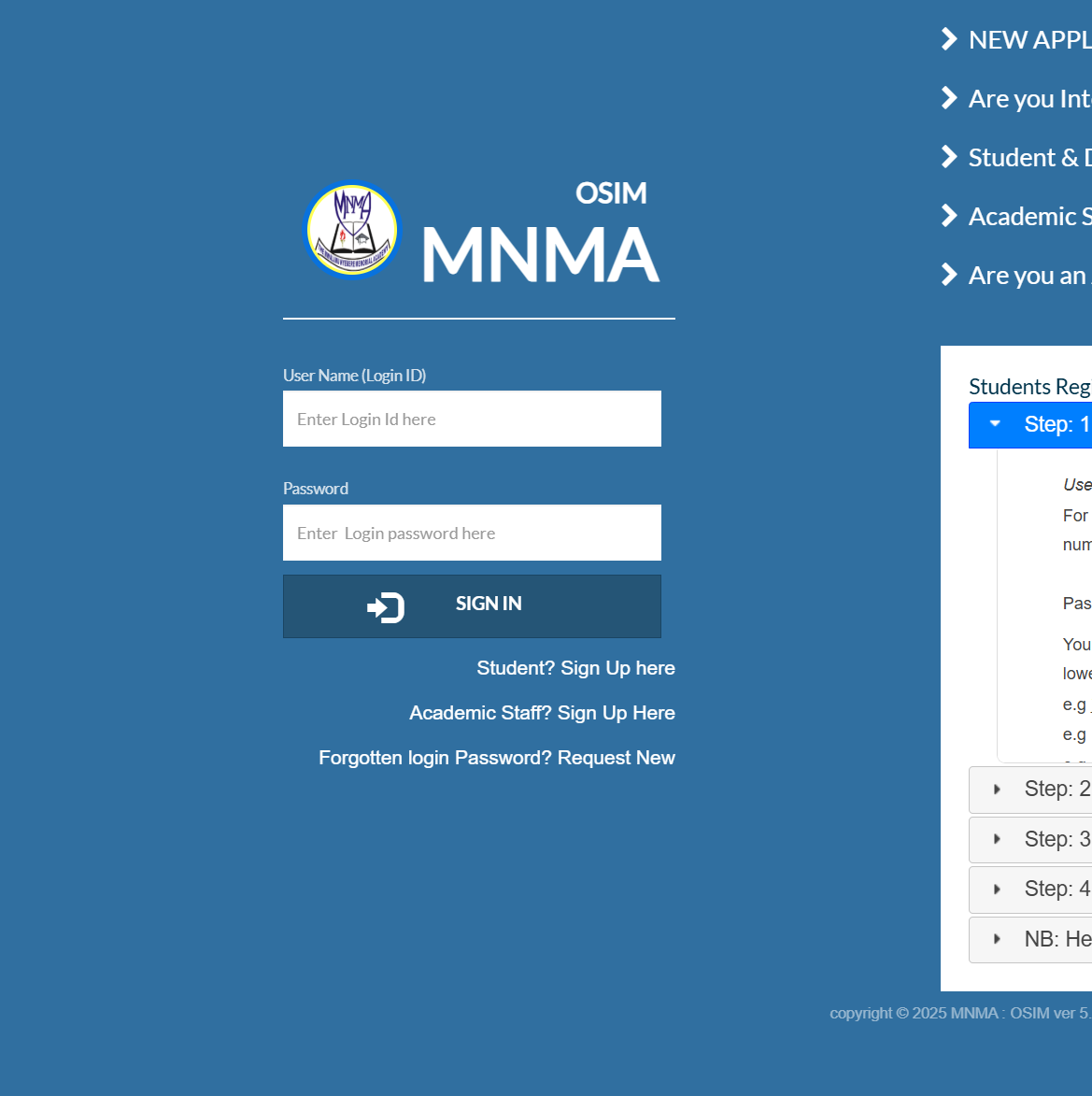
Once your account is created, return to the login screen, enter your Login ID and password, and sign in.
This takes you to your dashboard, where all services become available.
Step 4: Review Registration Instructions & Fee Payment Details
Inside your account, you’ll find clear steps for completing registration along with tuition and fee payment guidance.
Move through each section at your own pace and make sure everything is submitted.
Available Services Inside mnma osim
Once logged in, you’ll have access to several helpful tools:
Account Management
Update your profile, change your password, or verify your contact information.
Registration Features
Submit your details, follow academic requirements, and confirm your status for the semester.
Payment Information
View fee structures, instructions, and steps for completing payments smoothly.
Support & Help Sections
If you get stuck, look for the “Help and Support Instructions” section for quick guidance.
What You Can Do as a Student, Applicant, Staff, or Alumni
For Students
-
Sign up for your OSIM account
-
Complete semester registration
-
View fee instructions
-
Manage your academic profile
For New Applicants
Start the journey by selecting “NEW APPLICANT START HERE!!” on the homepage and follow the system prompts.
For Inter-University Transfer Students
Click “Start Here!!” under the transfer section to begin your joining process.
For Academic Staff
Create your staff OSIM account to access academic tools and teaching resources.
For Alumni
Set up your alumni login to manage profiles or access post-study services.
mnma osim Password Requirements: What You Need to Know
To keep your account safe, the system requires strong passwords. Your password must include:
-
At least one uppercase letter
-
At least one lowercase letter
-
At least one number
-
At least one special character such as $, %, *, -, +, =, !
Examples of accepted strong passwords include:
-
joHn2014
-
henry–KHZ19
Weak passwords like nashon will be rejected.
Tips & Quick Answers for mnma osim Users
Forgot Your Password?
Use the “Request New” link on the login page to reset your password.
Don’t Have an Account Yet?
Select the option that matches your category—student, staff, or alumni—and sign up.
Not Sure Which Link to Use?
Each option on the homepage is clearly labeled. Choose the one that best describes your role.
Need Your Registration Number?
New applicants can retrieve it directly through the link displayed above the signup area.
Extra Notes and Helpful Reminders
-
Always provide an active email and phone number to receive system updates.
-
Double-check your registration number to avoid signup errors.
-
Keep your password secure and avoid sharing it with others.
-
If you encounter issues, refer to the built-in help instructions inside your account.
Conclusion
Getting started with mnma osim doesn’t have to feel complicated. With the right steps and a clear path, you can set up your account, manage your information, and take control of your academic journey with confidence.
Whenever you need to return, continue your registration, or check your details, the platform is always there to guide you. Take your time, follow each step, and you’ll be fully set up in no time.
Go to our Homepage To Get Relevant Information.
Contents
- 1 mnma osim: A Simple, Friendly Guide to Getting Started on the Platform
- 1.1 Introduction
- 1.2 How to Begin with mnma osim
- 1.3 Step-by-Step Instructions for Using mnma osim
- 1.4 Available Services Inside mnma osim
- 1.5 What You Can Do as a Student, Applicant, Staff, or Alumni
- 1.6 mnma osim Password Requirements: What You Need to Know
- 1.7 Tips & Quick Answers for mnma osim Users
- 1.8 Extra Notes and Helpful Reminders
- 1.9 Conclusion