
Sims Must: A Simple, Helpful Guide to Using MUST’s Student Information System
Introduction
If you’re a student or staff member at Mbeya University of Science and Technology, you’ll rely on the Student Information Management System to handle everything from course registration to checking results. This guide focuses on Sims Must, the platform that keeps all your academic information organized and easy to access.
You’ll learn how to get started, log in, reset your password, explore available services, and make the most out of the tools inside the system. The goal is to give you a smooth, stress-free walkthrough so you can focus on your studies or teaching—not guesswork.
Getting Started With Sims Must
Sims Must is designed to bring all important academic functions into a single, easy-to-use portal. Whether you’re registering for courses or publishing results, the system keeps everything centralized.
How to Begin
Before you can do anything else, you need access to the platform. Students, teaching staff, and administrators use the same login page, with features tailored to their roles once they sign in.
Step-by-Step Instructions for Using Sims Must
Step 1: Visit the Official Login Page
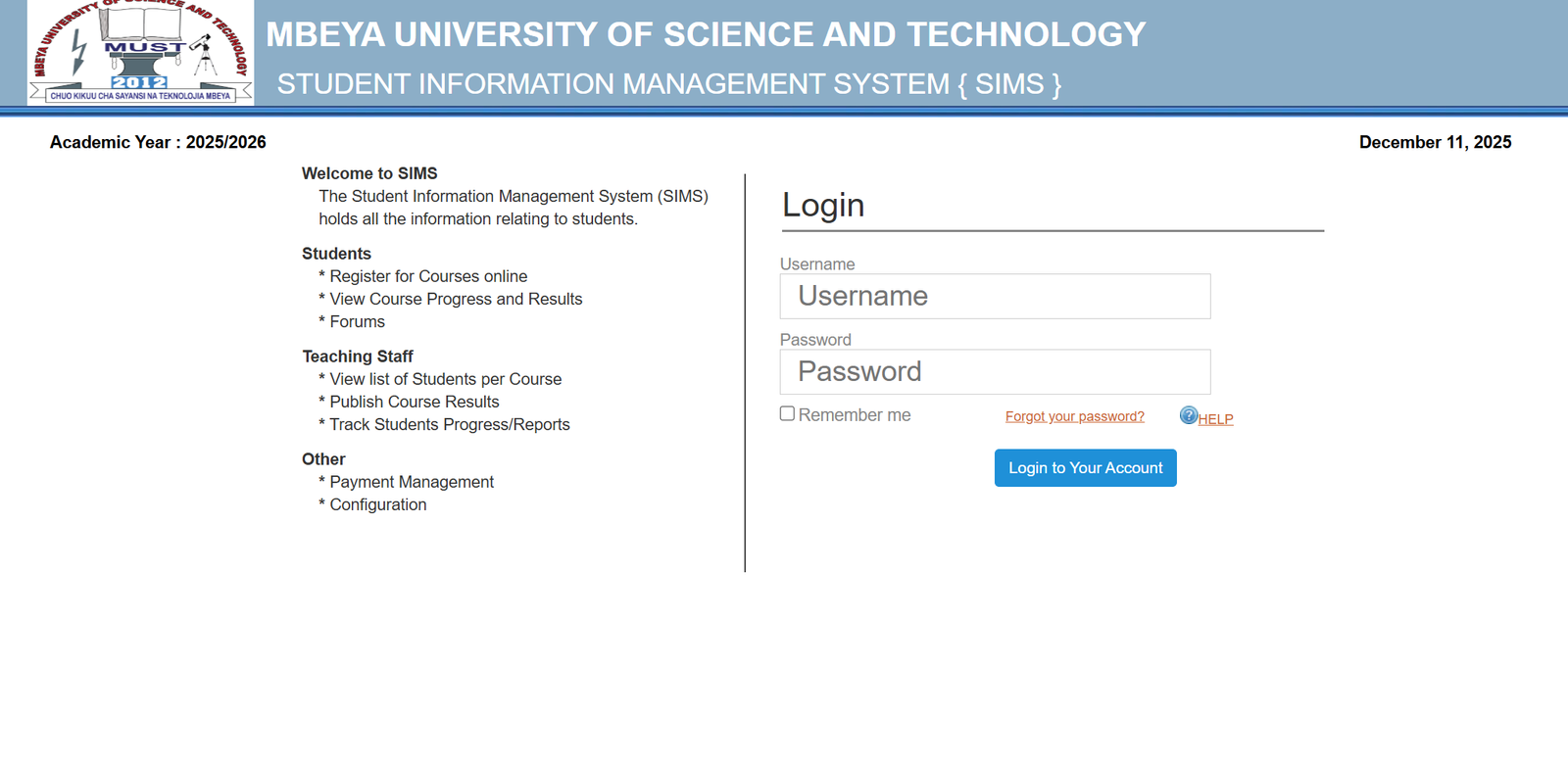
Go to the official SIMS portal: https://sims.must.ac.tz/login.
This is where you’ll safely enter your credentials and access all available services.
Step 2: Enter Your Username
Type your assigned username in the Username field. Make sure you enter it exactly as provided, since even small mistakes can prevent login.
Step 3: Enter Your Password
Type your password in the Password field. If you’re on a personal device and prefer quicker access later, you can select Remember me.
Step 4: Click “Login”
Once your details are filled in, click the Login button to open your dashboard and begin using Sims Must.
What You Can Do in Sims Must
For Students
Sims Must offers several helpful tools that simplify your academic tasks:
-
Register for courses online
Choose your classes for the semester without visiting an office. -
View course progress and results
Check your grades and monitor your academic journey. -
Join forums
Engage with lecturers and classmates through interactive discussion spaces.
For Teaching Staff
Lecturers also benefit from a streamlined workflow:
-
View student lists per course
Know exactly who is enrolled in each class. -
Publish course results
Upload marks quickly and securely. -
Track student progress and reports
Follow academic performance throughout the semester.
Other Available Services
Beyond academics, Sims Must includes:
-
Payment management
Review and confirm required university payments. -
Configuration tools
Adjust system settings depending on your role and permissions.
Registration in Sims Must
If you’re a new student, registration typically begins after you receive your university credentials. Once you have your username and password, you can:
-
Log into the system.
-
Access the registration section.
-
Enter or confirm required personal and program details.
-
Register for your course load for the academic year.
This section ensures your academic profile is set up correctly from the start.
Resetting a Password in Sims Must
If you forget your password, the system makes recovery straightforward.
How to Reset Your Password
-
Go to the login page.
-
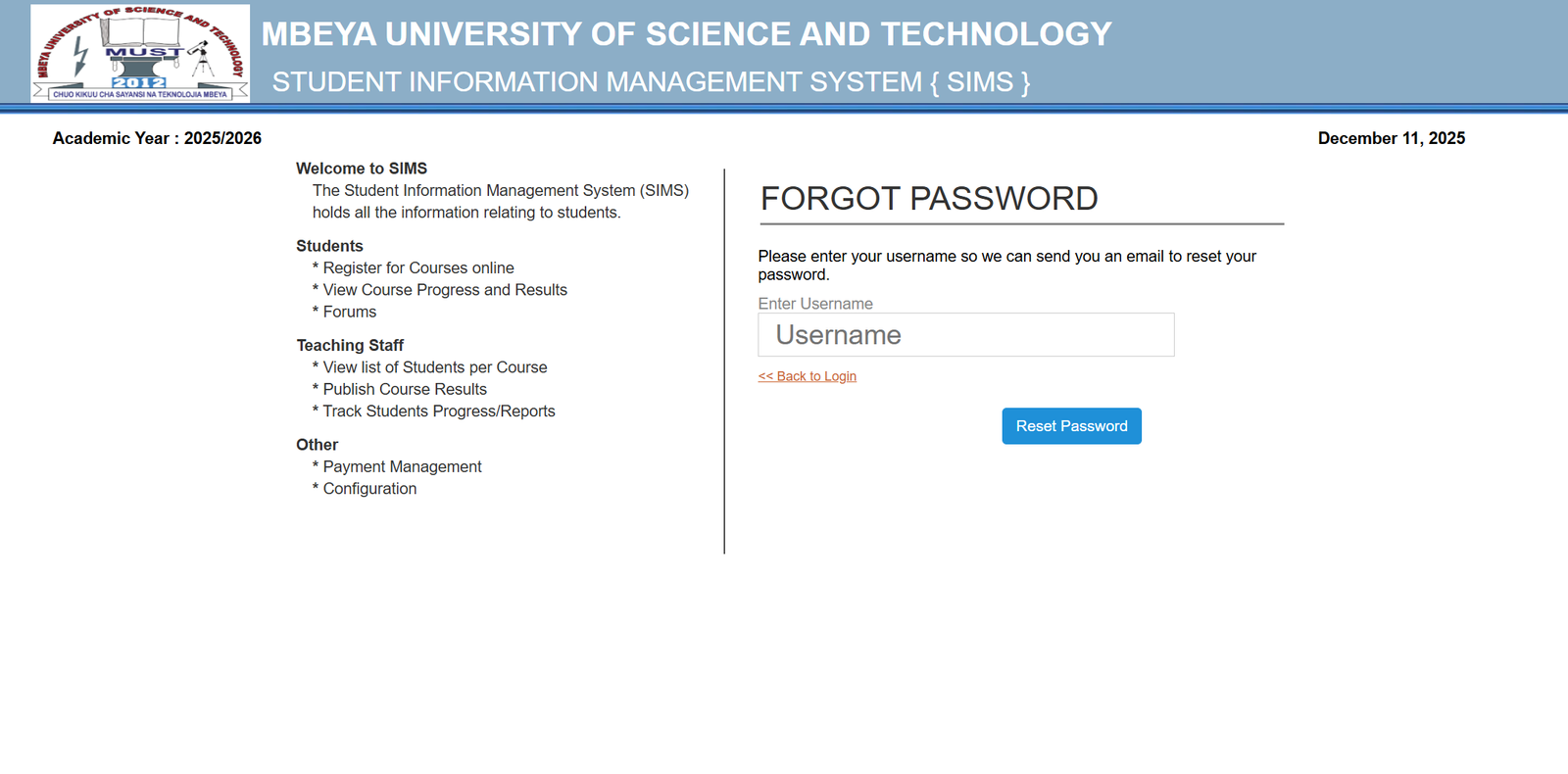
Click Forgot your password?
-
Enter your username in the provided field.
-
Submit the request to receive an email with reset instructions.
-
Follow the link in your email to create a new, secure password.
If you ever get stuck, the system includes a Help option for additional support.
Downloading or Checking Your Status
While the platform does not require any software installation, you can download academic documents such as results or course listings once logged in. You can also check your academic status instantly, including:
-
Course registration status
-
Available marks
-
Payment updates
-
Progress reports
Everything appears in your dashboard as soon as you sign in.
Extra Notes
-
Sims Must stands for Student Information Management System, the central academic data hub for Mbeya University of Science and Technology.
-
Each role—student, teaching staff, or administrator—has access to tools designed specifically for their tasks.
-
Always log out when using a shared computer to protect your account information.
Conclusion
Sims Must keeps your academic life organized and accessible from one simple dashboard. With quick login steps, clear tools, and helpful support features, it removes many of the hassles that come with managing university tasks. Once you familiarize yourself with the platform, you’ll find it becomes an essential part of your daily academic routine.
Go to our Homepage To Get Relevant Information.
Contents
- 1 Sims Must: A Simple, Helpful Guide to Using MUST’s Student Information System